SFP Media Buddy
Tested Devices
The following devices have been tested and confirmed to work or not work
Device |
SFP |
Uart |
Comments |
|---|---|---|---|
Was-110 |
Yes |
Yes |
|
HLX-SFP |
Yes |
No |
Uart pins not on SFP pins |
G-010S-P |
Yes |
Yes |
|
DFP-34x-2c2 |
No |
No |
Currently working on new
firmware to support SFP,
Pulls significant power, v1
of hardware may not support
properly. Devices have internal
uart headers not exposed to SFP
|
How to use a media buddy
The Media Buddy should be plug and play for standard usage. Plug into a USB-C wall wart or port supplying at least 1 amp of power at 5v, insert your SFP module, and plug in a RJ45 cable the to ethernet port. If you need to access the SFP device or modify configurations then you will need to plug it into a computer. Whenever you plug your media buddy into your computer it should expose a single device with 4 functions.
2 Serial Devices
1 HID Device
1 Unknown Device
Windows
Whenever connected 4 devices will show within windows with only 3 being currently used. From device manager you can see a HID device, a unknown I2C device and two COM ports. The COM ports are of interest here, while the order appears to be random they are used to control both the SFP module within the device and the device itself.
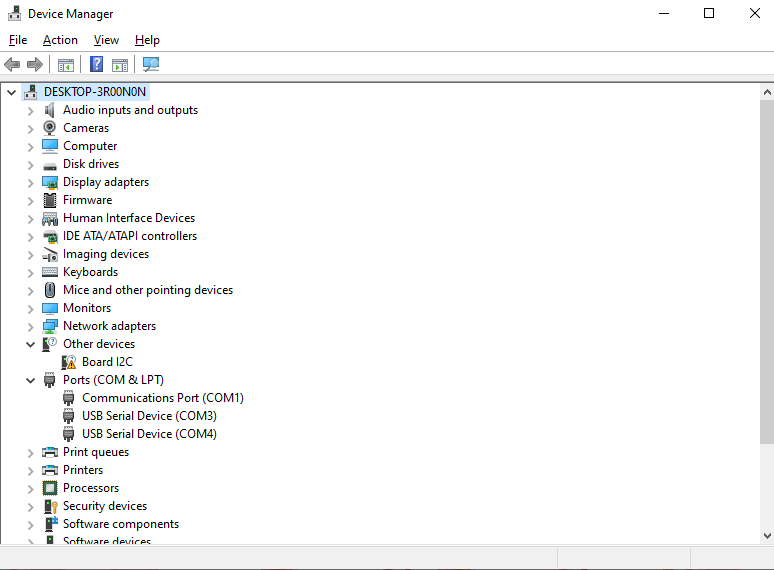
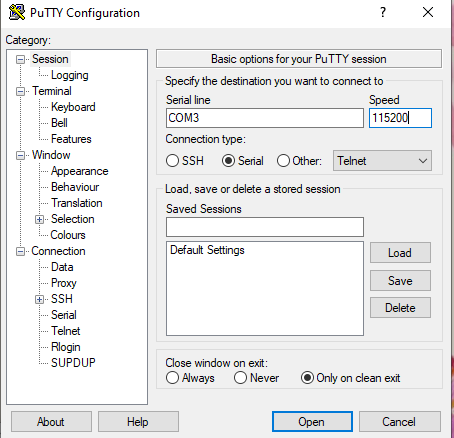
With the device connected you can now use PuTTY or your favorite serial program to connect to the device or SFP module. While the order is random it will stay constant while plugged in. As an example I have opened putty and set the connection type to Serial and then put in the Serial Line field COM3 which I grabbed from device manager. Finally I set the baud rate to 115200 which is a common baud rate for these serial devices.
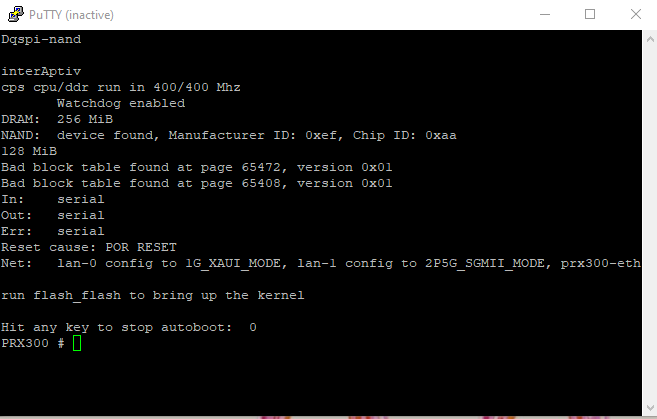
If you successfully connect to the SFP stick you should start to see text streaming as you can see below, if its been awhile try power cycling the stick with the SFP power button or the cycle_sfp command in the media buddy interface. If this still does not work check that you are using the correct pins for your device.
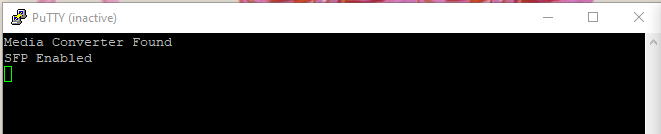
If you picked the wrong COM interface you will just see the media buddy command console as seen below, you can just select the other COM port and reconnect
Linux
<coming soon>
Mac
<coming soon>
Hardware
The SFP Media buddy is a 2.5G Media converter containing a rp2040 for management and a RTL8221B for media conversion. Power is provided by a USB-C interface that supports USB-PD including all current ranges and voltages of 5v, 9v, and 15v. The incoming power is then converted to 3.3v for usage by the media converter, rp2040, and SFP socket, the onboard converter is capable of 3 amps of current at 3.3v which should be plenty for all currently known SFP modules.
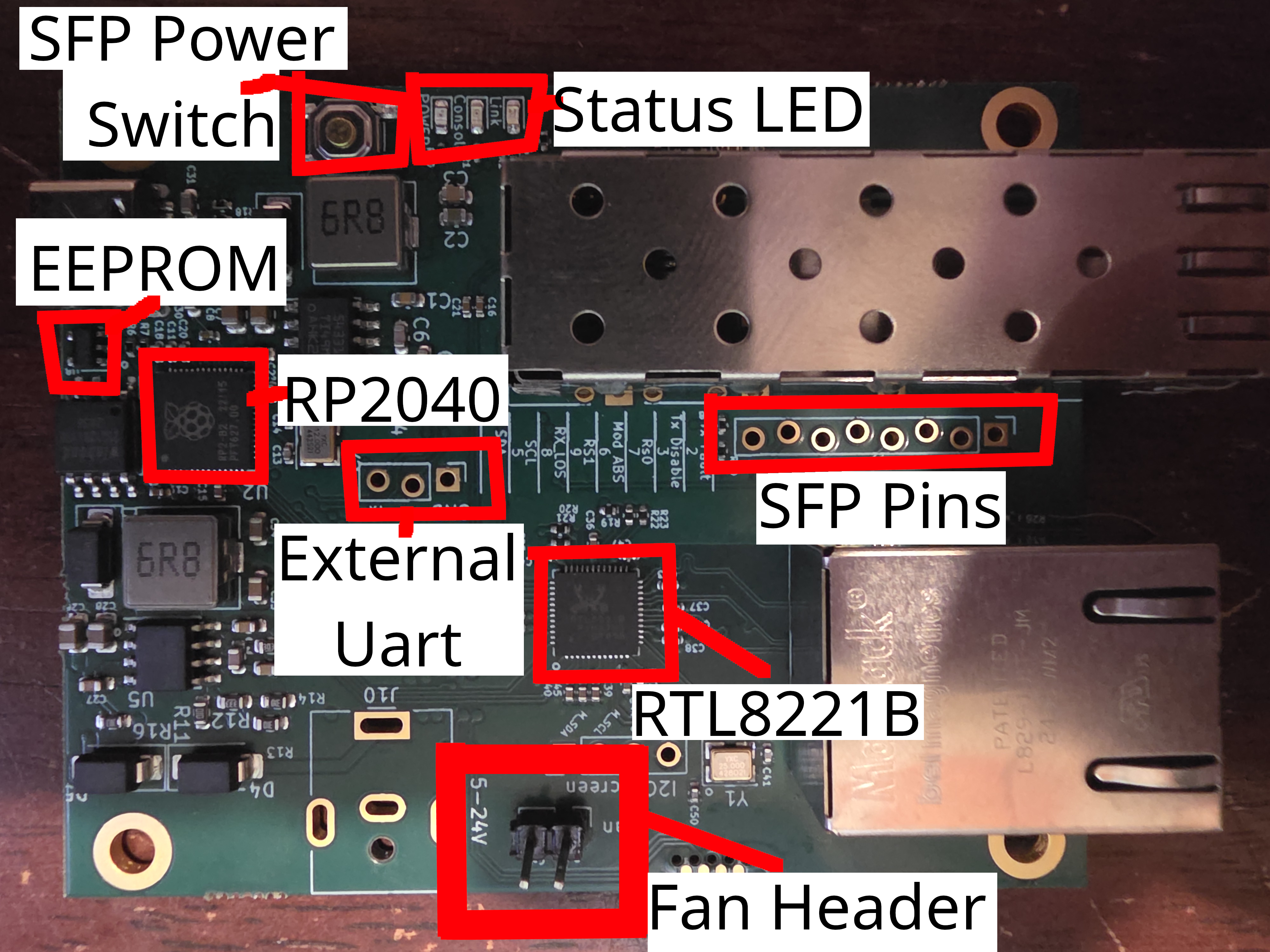
The above figure labels all the important components of the media buddy. Starting from top left and moving right and then down there is a button to power cycle the SFP port, status LEDs for sufficient power, command connection, and SFP link established. Next row is the Eeprom for storing config data and then the rp2040 which acts as management controller. Next is the External UART for using the media buddy as a simple usb-uart converter followed by breakouts for all of the SFP control pins allowing one to check their status externally. Next is the RTL8221B media converter IC followed by a 3.3v fan header.
For power input there is a USB-C port that supports USB-PD as well as an unpopulated barrel plug that supports any voltage from 5-20v. If you want to populate the barrel plug it is part number SameSky/CUI PJ-063AH
A defining feature of the SFP Media Buddy that sets it apart from other 2.5G media converters on the market is its management features. While it doesn’t allow for typical networking management features such as VLANs, it does allow for control over the RTL8221B registers as well as accessory pins of the SFP socket. This allows one to power cycle the SFP over the USB console or toggle pins on the SFP socket as well as reset the RTL8221B. One benefits of this is also the ability to access non-standard TTL pins on SFP modules over a secondary console over USB.
Overall the USB interface three interfaces are exposed
USB console(0) tied to the PIO UART of the RP2040
USB console(1) is a virtual management console, commands are documented below
Custom I2C interface <Driver in development>
Firmware
Updates to the firmware are available by calling the update_fw function and dragging new uf2 file onto the exposed mass storage device
If you cannot get to the command console directly attempting to open the console as a baud rate of 1200 should also put it in mass storage mode.
Commands
Commands one can run on the SFP Media Buddy’s console
i2cget
gets 1 or more bytes from a i2c address
i2cget[CHIP-ADDRESS] [DATA-ADDRESS] [LEN]
Arguments
- CHIP-ADDRESS
- DATA-ADDRESS
- LEN
i2cset
… sets 1 or more bytes to a i2c
i2cset[CHIP-ADDRESS] [DATA-ADDRESS] [DATA]
Arguments
- CHIP-ADDRESS
- DATA-ADDRESS
- DATA
mdio_write
sets the register to value
mdio_write[MMD] [REGISTER] [VALUE]
Arguments
- MMD
- REGISTER
- VALUE
mdio_read
reads the register
mdio_read[MMD] [REGISTER]
Arguments
- MMD
- REGISTER
set_rx_pin
Sets the rx pin for uartrn Valid values are 0-9 with 2-9 being pins on the SFP socket
set_rx_pin[PIN]
Arguments
- PIN
set_tx_pin
Sets the tx pin for uartrn Valid values are 0-9 with 2-9 being pins on the SFP socket
set_tx_pin[PIN]
Arguments
- PIN
rtl_reset
Resets media converter IC
rtl_reset
rtl_set_serdes_mode
Set the mode of the media converter.rn 1 for manual rn 2 for autorn any other entry resets
rtl_set_serdes_mode
rtl_clear_serdes_mode
Reset the mode of the media converter to default values(auto)
rtl_clear_serdes_mode(auto)
Options
- valuesauto
rtl_set_eth_speed
Set the speed of the ethernet port.rn 1 for 10M rn 2 for rn 100Mrn 3 for 1Grn 4 for 2.5grn any other entry resets
rtl_set_eth_speed
rtl_clear_eth_speed
Reset speed of ethernet to default values(auto negotiate)
rtl_clear_eth_speed(auto negotiate)
Options
- valuesauto
rtl_get_info
Get the current speed and link status of the media converter
rtl_get_info
rtl_get_leds
Get the current led status
rtl_get_leds
enable_sfp
Enables power to the SFP Module
enable_sfp
disable_sfp
Disables power to the SFP Module
disable_sfp
cycle_sfp
Power cycles the SFP Module
cycle_sfp
update_fw
reboots device into msc flash mode
update_fw
pin_info
outputs current state of SFP pins
pin_info
version
get SFP-BUDDY version
version
help
prints help for commands
help